I’m sick of the “this doesn’t have a certificate” warnings. I:
- have a Windows 10 Pro machine
- want to use a LetsEncrypt certificate for RDP connections.
- don’t have an AD/IPA/whatever domain to join
- have the machine’s hostname in Cloudflare DNS
In this example I’ll use workstation.example.com as the hostname I’ll connect to, change this for your own hostname.
- Install CertifyTheWeb.
- Copy this powershell script to somewhere you won’t delete it (eg.
c:\scripts\update_rdp_certificate.ps1):
# this grabs the certificate thumbprint and tells RDP to use it
$HOSTNAME="workstation.example.com"
$THUMBPRINT = (ls Cert:\LocalMachine\my | WHERE {$_.Subject -match $HOSTNAME } | Select -First 1).Thumbprint

if (!$THUMBPRINT) {
    write-host "Failed to find certificate thumbprint for ${HOSTNAME}, quitting."
} else {
    write-host "Found certificate thumbprint for ${HOSTNAME}: ${THUMBPRINT}"
    write-host "Configuring RDP"
    & wmic /namespace:\\root\CIMV2\TerminalServices PATH Win32_TSGeneralSetting Set SSLCertificateSHA1Hash="$THUMBPRINT"
    write-host `Done!`
}
- Open CertifyTheWeb.
- Register a contact for LetsEncrypt with some contact details under both the normal and
testmodes. Test mode is enabled by clicking on the advanced tab and ticking theUse staging Mode (Test Certificates)box. - Click New Certificate.
- Select
Certificateon the right if it’s not already selected. - In the
Domainstab , enter the full hostname you’ll use to connect to the machine. ie.workstation.example.com. Remember to click the green+next to the domain name to add it to the list.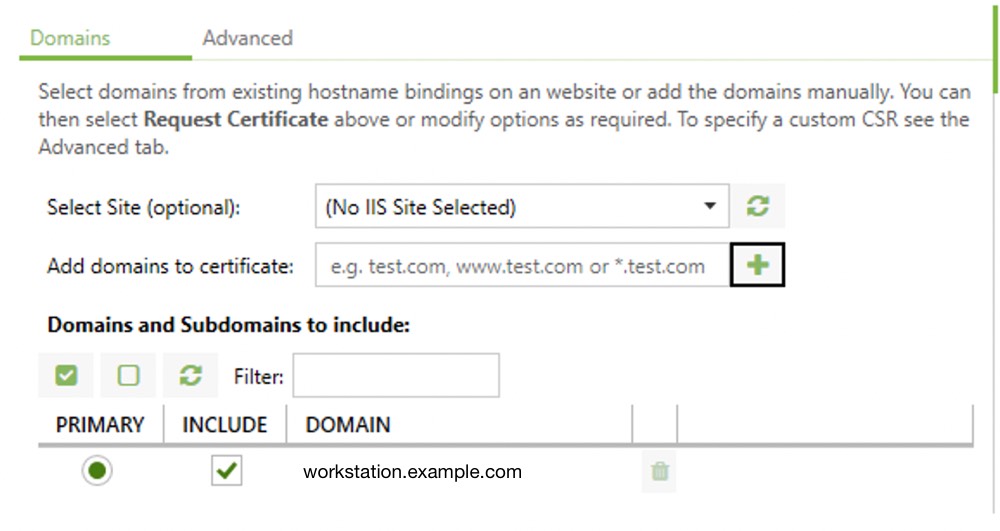
- On the
Advancedtab, set the Certificate Authority toLetsEncrypt. Until you’re sure everything works, tick theUse staging Mode (Test Certificates)box. - Click on Authorisation on the right.
- Change the
Challenge Typetodns-01and the DNS Update Method toCloudflare DNS API. - Add the a new Credential Cloudflare API token.
- You’ll need to give it permission to edit the DNS zone you want to issue certificates for.
- Select the Zone you want to issue the certificate under by clicking the
...next to DNS Zone ID and selecting the zone name. - Click
Deploymenton the right. - Set the Deployment Mode to
Certificate Store Onlysince we won’t be assigning this to any IIS Websites. - Click
Taskson the right and add a Deployment Task ofRun PowerShell Script. - On the Task Parameters tab, set the Program/Script to the path of your script (eg.
c:\scripts\update_rdp_certificate.ps1). - Click
Previewon the right and check everything seems OK.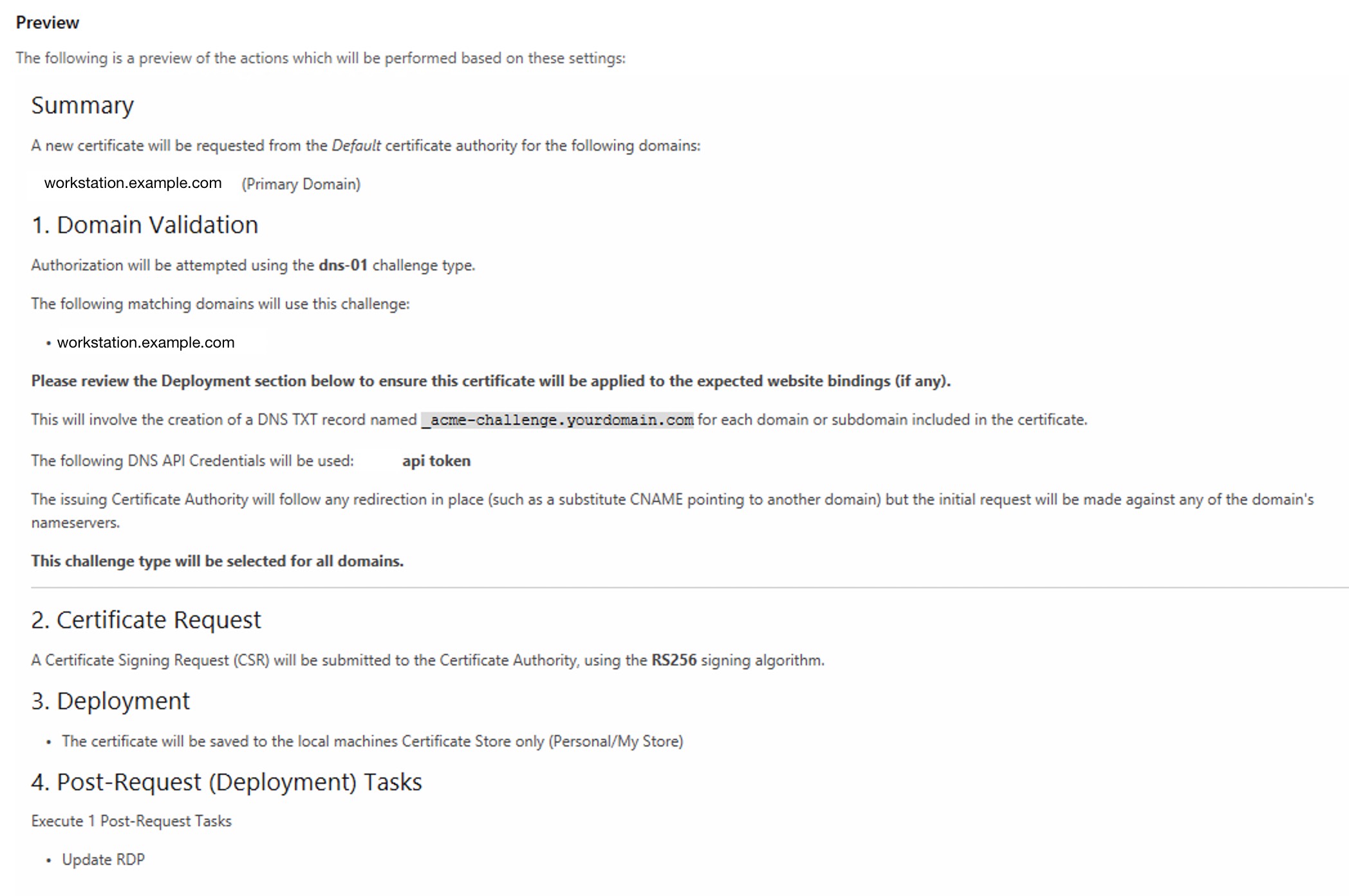
- Click
Testto make sure things work the way they should. - Click
Request certificateand see how it works!
Remember to set the authority back to the production one and re-issue when you’re done. :)
References
- SuperUser.com - How to Provide a Verified Server Certificate for Remote Desktop RDP Connection (thread) (answer I used)
- My whiny Twitter thread